Trainer Recordings
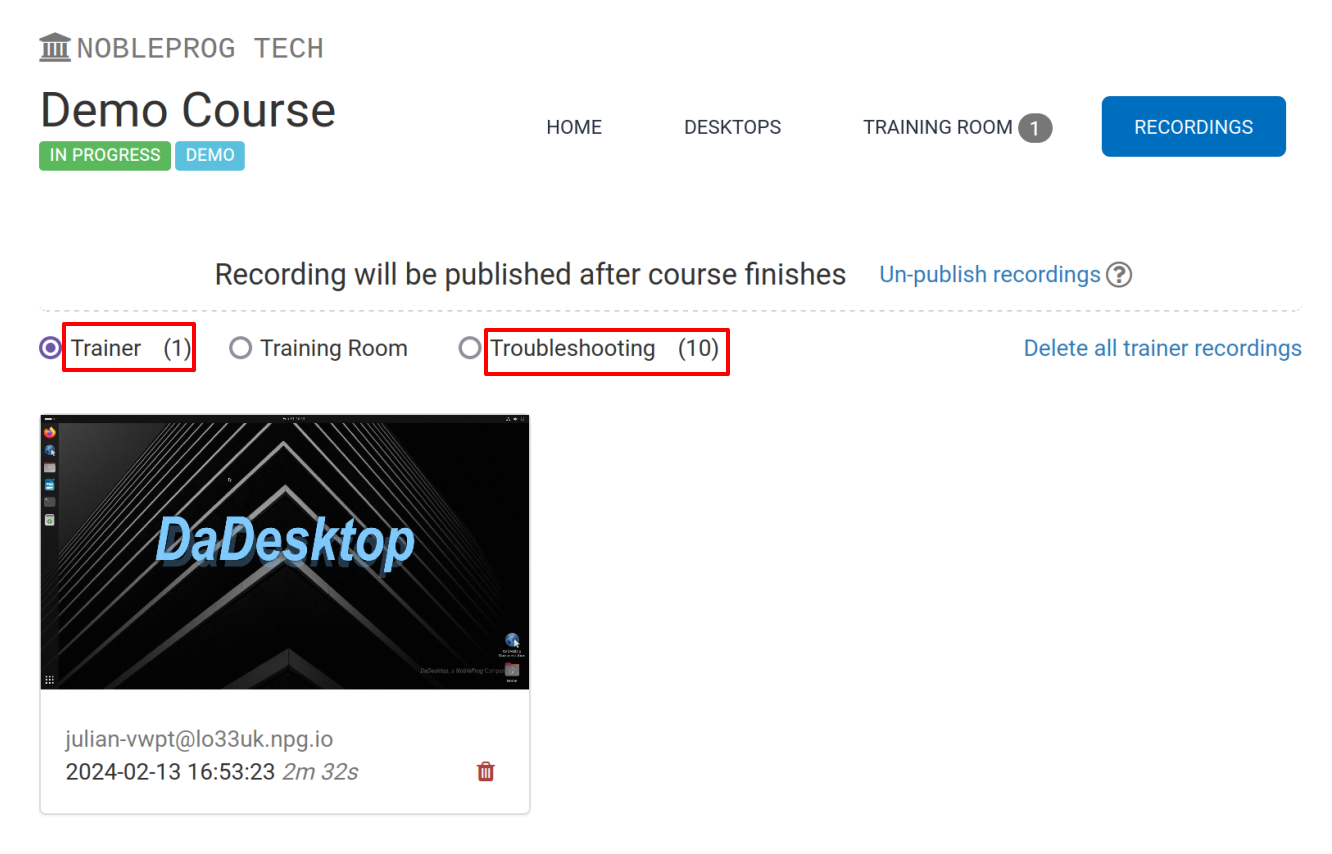
DaDesktop offers several methods to record desktops and course sessions. These include Troubleshooting recordings, Training Room recordings, and Trainer recordings.
Trainer recordings capture the Trainer’s DaDesktop machine. Trainers can start recording their machine session as follows.
- Click the three vertical dots to open a small dropdown menu. From the dropdown, choose 'Connect (with session recording)'.
-
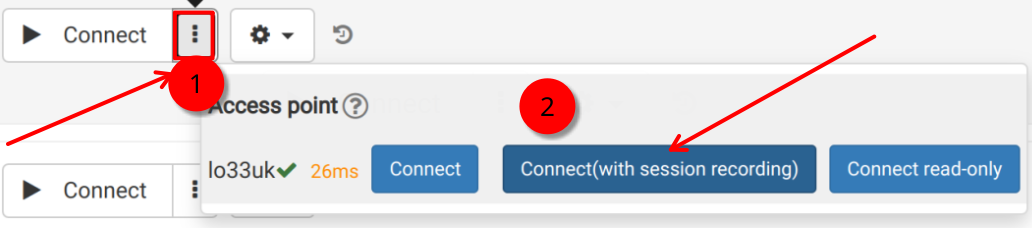
Once started, an audio/video recording of the Trainer machine is created, but it cannot be viewed until after closing the virtual classroom, when the recording is finalised. Note: As a SuperAdmin user, there is an extra menu option to watch live recordings as they happen.
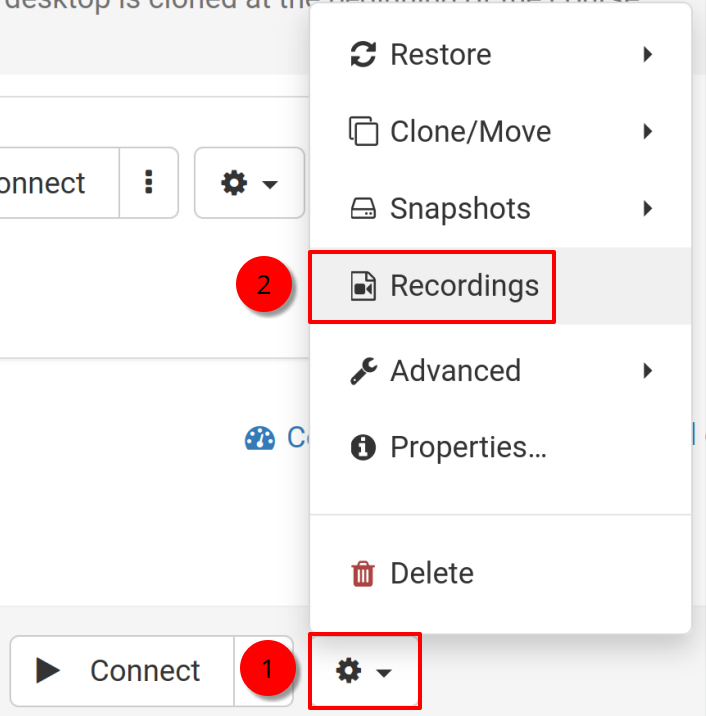
- To view and edit the recordings, click the 'cog' icon and open the Recordings menu.
Recordings
Trainer recordings of their machine can be accessed in two ways.
- Recordings can be found in the Recordings menu as described above. You can play and delete them as needed. The double spanner icon marks 'Troubleshooting Recordings'—these are generated automatically for diagnostic purposes and are not meant for presentation.
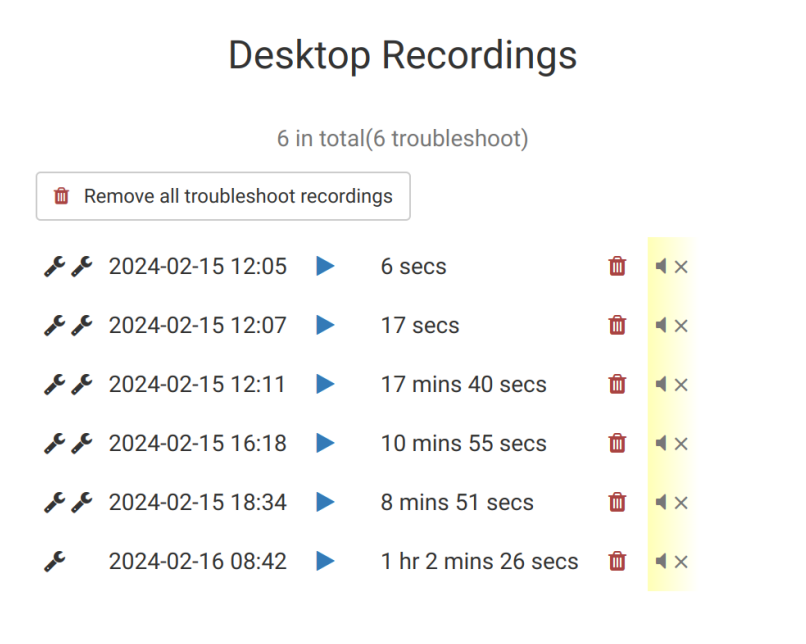
2. Via the 'Recordings' tab within a course, you can see Trainer recordings, Training Room recordings, and Troubleshooting recordings all in one place.