Recycle Bin
Once a course wraps up, all its associated machines—like Fresh Start, Trainer, and every participant machine—are automatically cleared out after a short while.
We’ve now added a way to recover these machines from the ‘Recycle Bin’ even after they’ve been taken off the course. How long they stay recoverable isn’t fixed; it depends on factors such as server disk space, how heavily courses are used, and similar variables. That said, you can normally expect machines to be restorable for at least a couple of months after the course finishes.
For each machine, you can Restored it back to its original course if the course is still around; if not, you can Restored to a Standalone Desktop to use it independently, or choose to have it Deleted entirely.
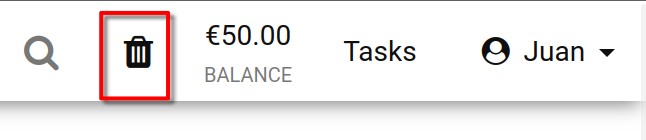
Just look at the Recycle Bin icon to see its status. A black icon means there are machines waiting to be restored; a greyed-out icon tells you the bin is empty and there’s nothing to recover.
You can also search through the machine list in the recycle bin by name, server name, or course name to quickly locate what you need.
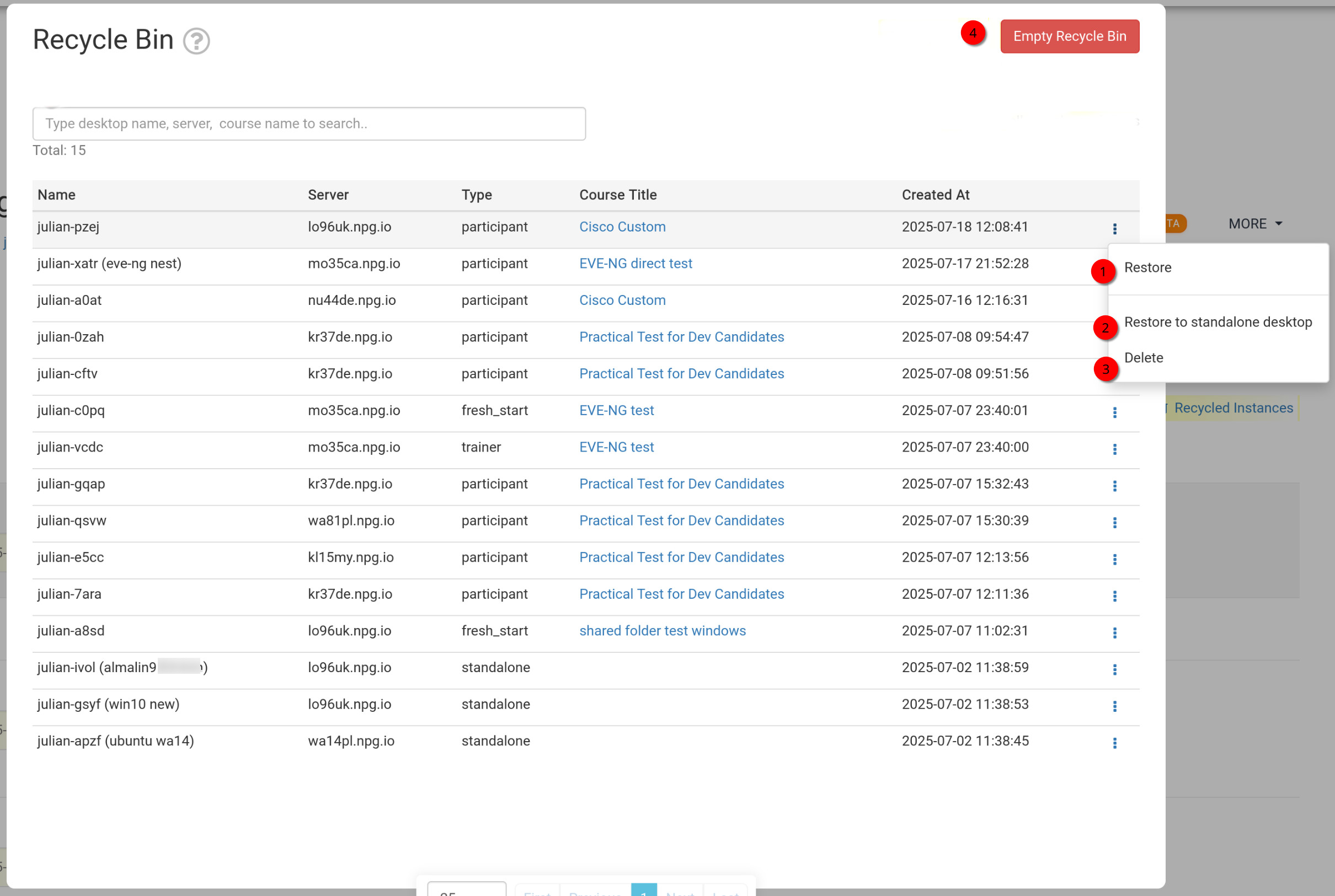
How to Restore or Delete your machines from the Recycle Bin
- Restore – This option lets you send a deleted machine back to the course it originally belonged to. If that course has already ended, you won’t be able to restore it there; instead, you’ll need to restore it as a Standalone machine, which we cover next.
- Restore to Standalone Desktop – Typically used when the original course is no longer active. Restoring to a Standalone machine gives you more flexibility, as you can keep it around for as long as you need.
- Delete – To permanently remove a machine from the Recycle Bin, use this option. Just remember, once deleted from here, the machine can’t be restored.
- Empty Recycle Bin – Click the red Empty Recycle Bin button to clear out all machines at once. After that, none of them can be used again.