Adjusting Disk, CPU, and Memory Resources
Trainers can modify the resources originally set up for the Fresh-Start Desktop. This proves handy when you realise a course demands more CPU, memory, or storage for extra programs or software.
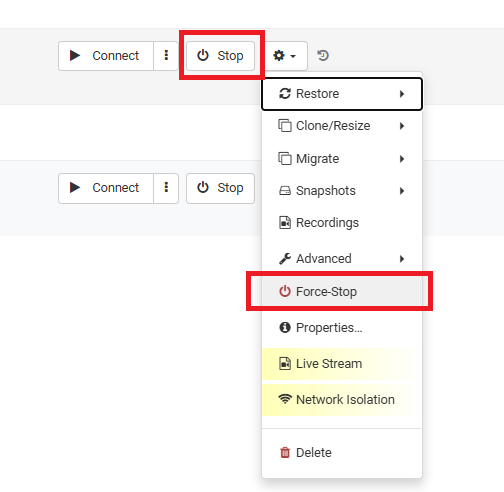
Before tweaking these values, you must first stop the Fresh-Start desktop. Click the gear icon and select either "Stop" or "Force-Stop" to power it down.
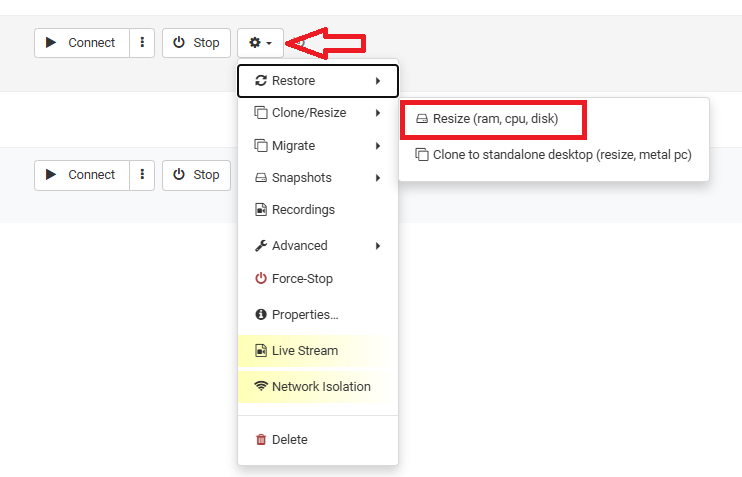
With the desktop halted, you're free to resize the allocated resources. Click the gear icon once more, then head to advanced > Resize (ram, cpu, disk).
Choosing that option brings up the Resize form, allowing you to reallocate the CPU, RAM, or Storage your desktop requires. The form displays the maximum allowed for each.
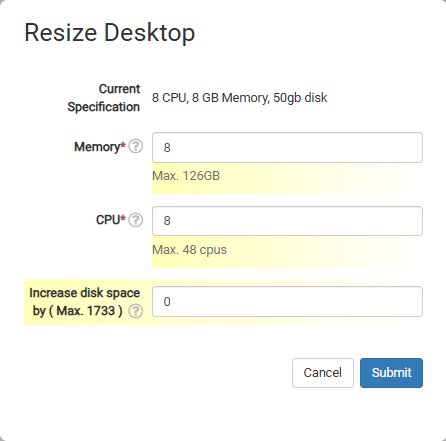
Bear in mind these adjustments can affect the desktop's pricing, but it's sensible to allocate whatever is needed so the course runs smoothly.