Desktop Snapshots
Using Desktop Snapshots
Snapshots let you back up your virtual machine and restore it conveniently.
For instance, if you’re performing an upgrade that could potentially break your system, you can first stop your virtual machine and take a snapshot.
After a successful upgrade, you can delete the snapshot; if something goes wrong, simply restore the machine to its earlier state.
Snapshots are supported on all DaDesktop machine types—Fresh Start, Trainer, Participant, and Standalone—so every type can benefit from them.
Please keep in mind that restoring a snapshot powers down the machine, and you’ll need to restart it afterwards.
How to Take Snapshots
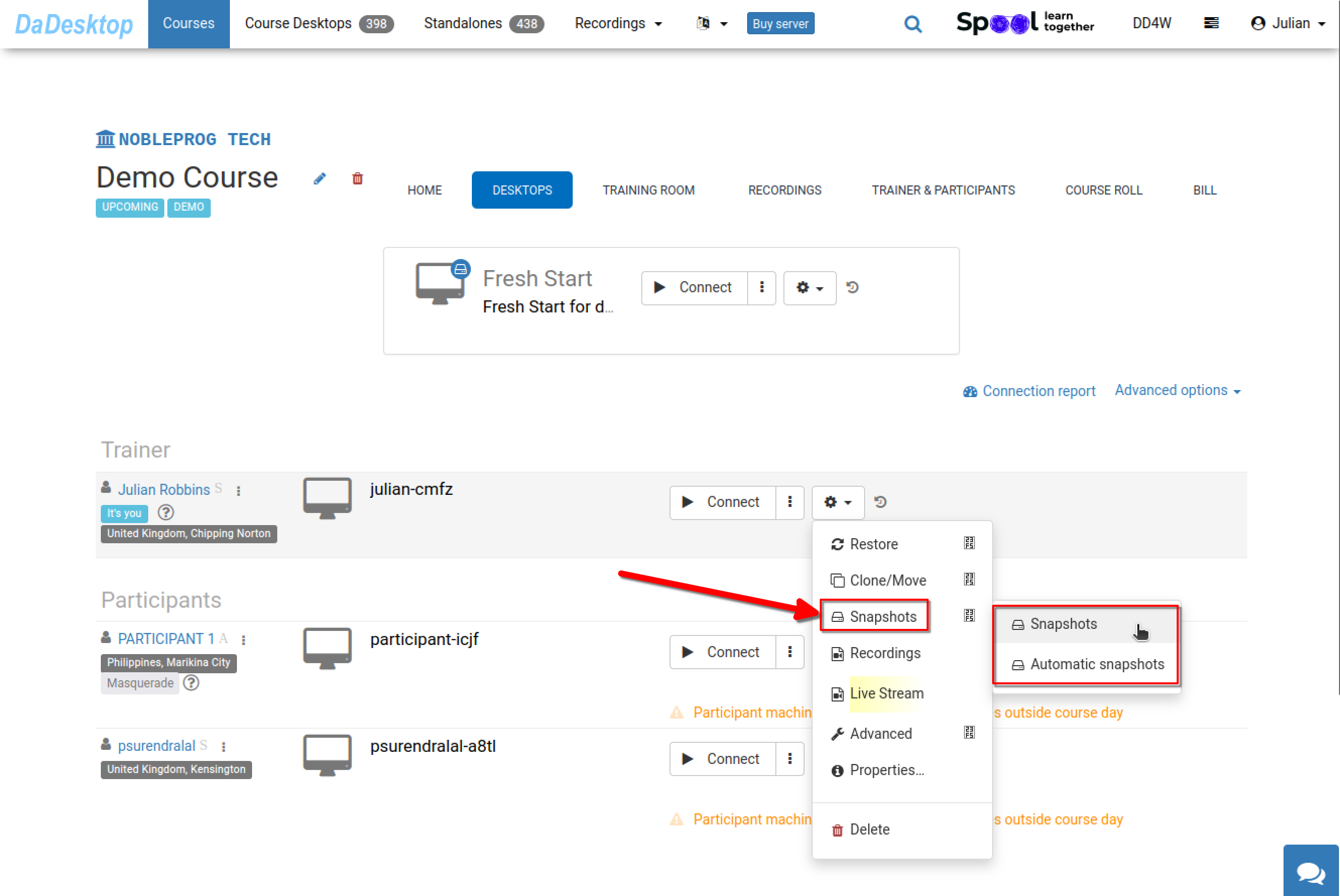
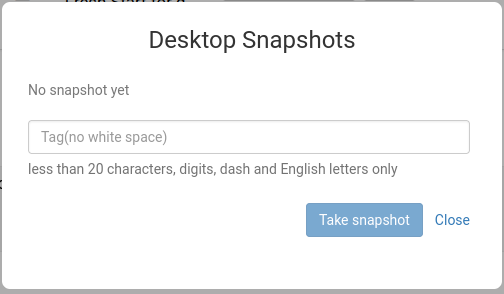
This shows how to take a snapshot. Assign a clear, descriptive name so you can easily identify the point at which it was captured.
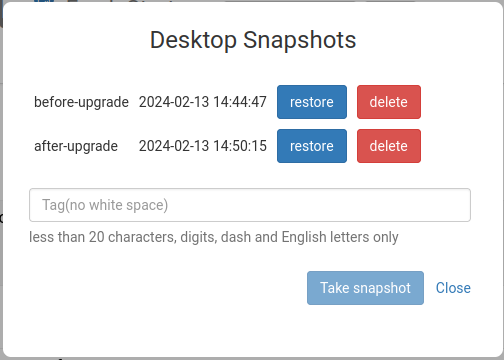
Below, you can see two snapshots taken at different stages. You can restore or delete them as needed.
Automating Desktop Snapshots
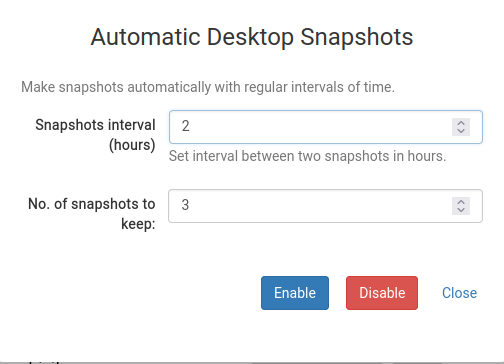
If you’d rather have snapshots captured automatically at regular intervals so you never miss one, Automatic Desktop Snapshots are the perfect solution.
You can set how many snapshots to retain and the interval at which new ones are created, all from here.