Create From Standalone Desktop
-
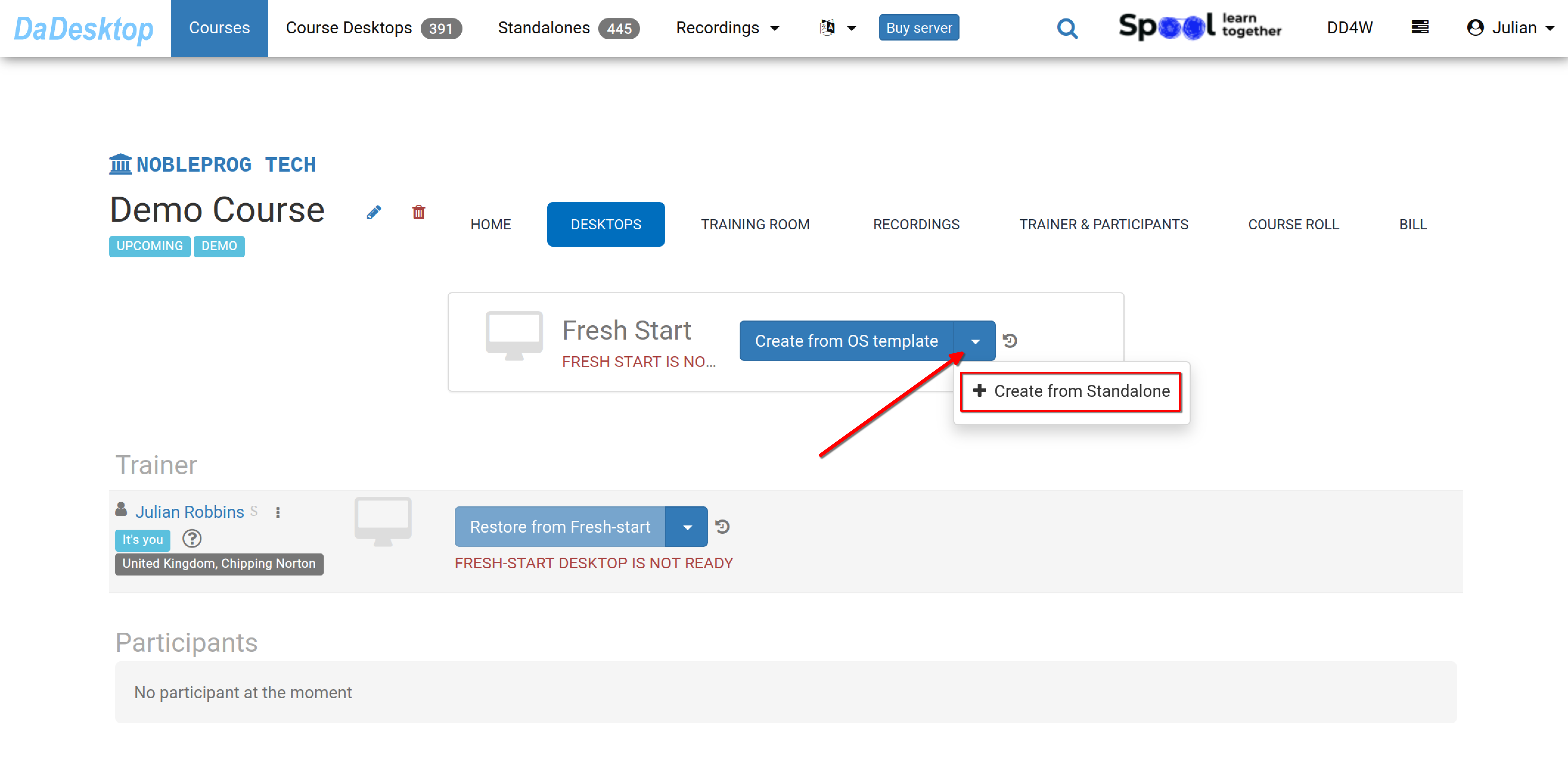
Head to the course you've created — the example below shows a Demo course. From there, go to the Desktops tab, click the down arrow, and choose "Create from Standalone" to start building your Fresh Start.
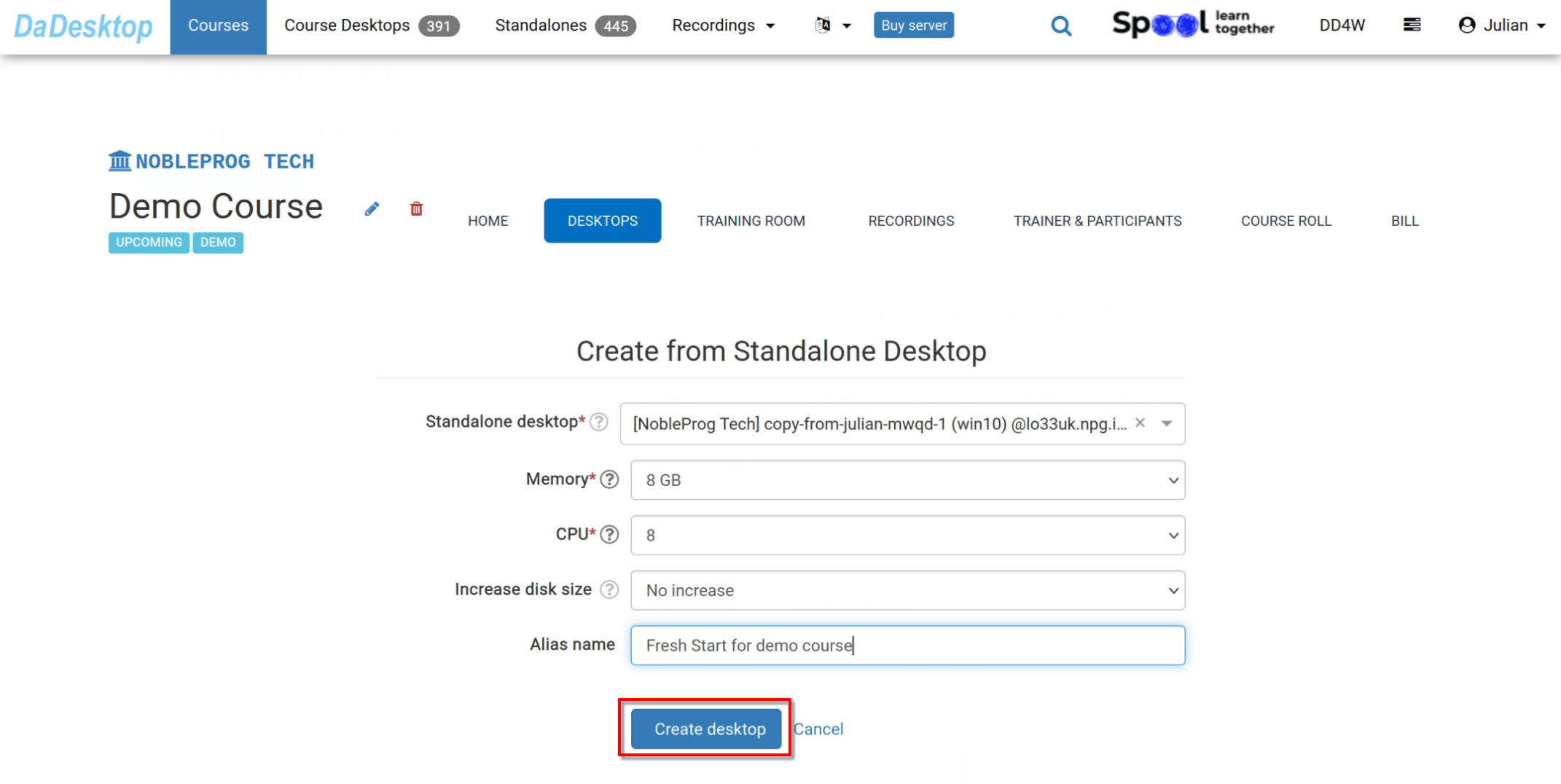
- Pick the "Standalone desktop" you've previously set up with the course environment — software, course materials, quizzes, etc.
-
If needed, you can adjust the memory, CPU, and increase disk size during this step. Then click "Create desktop".
-
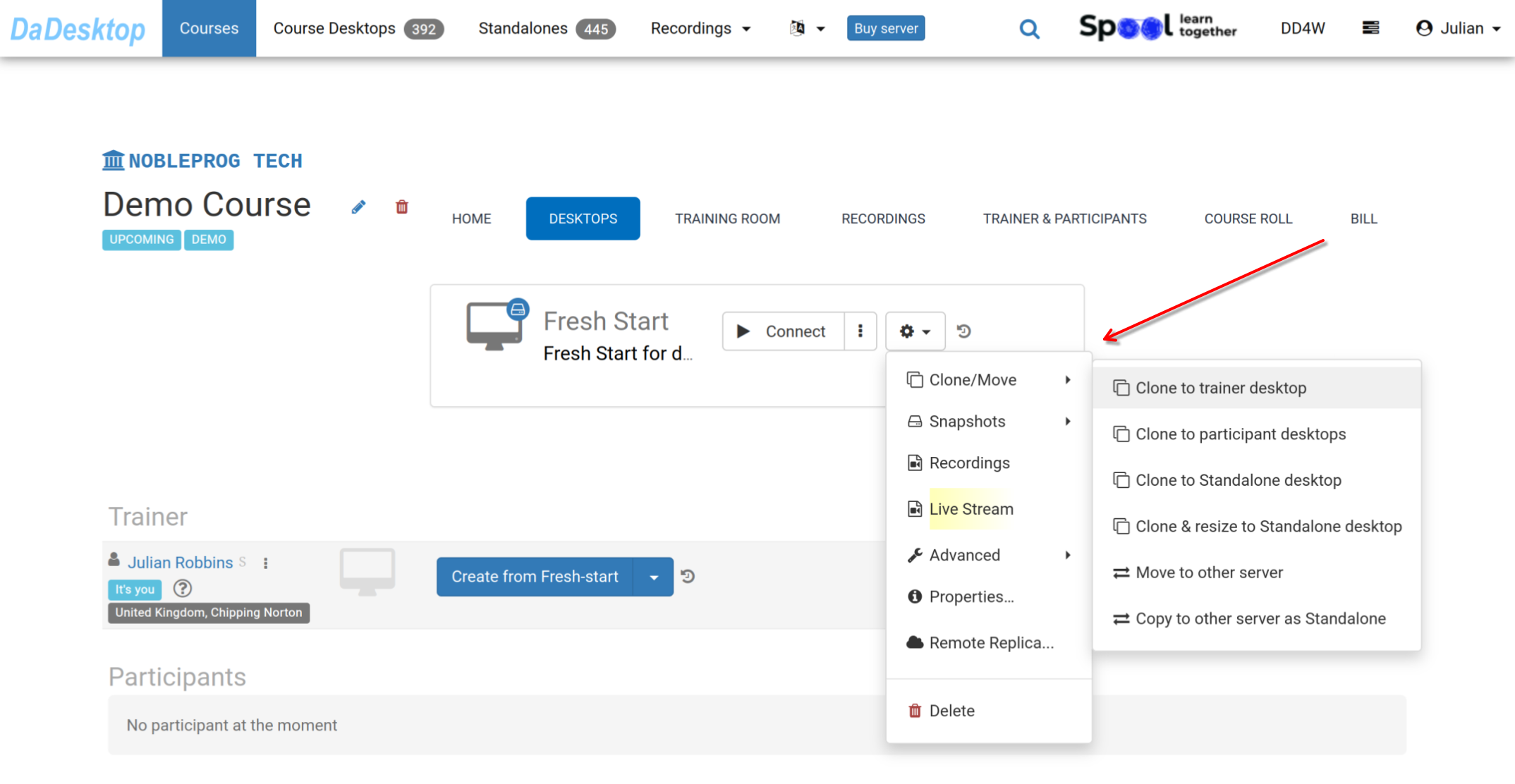
Once your Fresh Start is created, both the trainer and the participants can clone desktops from it.
Essentially, a Fresh Start is a course desktop that enables you to clone for all users — trainer and participants — at once. Anyone in the course can restore from this Fresh Start if needed.
From the 'Cog' menu, you'll find many other options: cloning the Fresh Start to the trainer, participants, or a standalone machine, and also cloning and resizing it as a standalone. You can also move the Fresh Start to another server, take snapshots, review recordings, or set up a Remote Replica.For more details, refer to the documentation covering these features.