How to Manage Servers
With your On-Premise or OEM DaDesktop cloud, you can add or remove servers as needed.
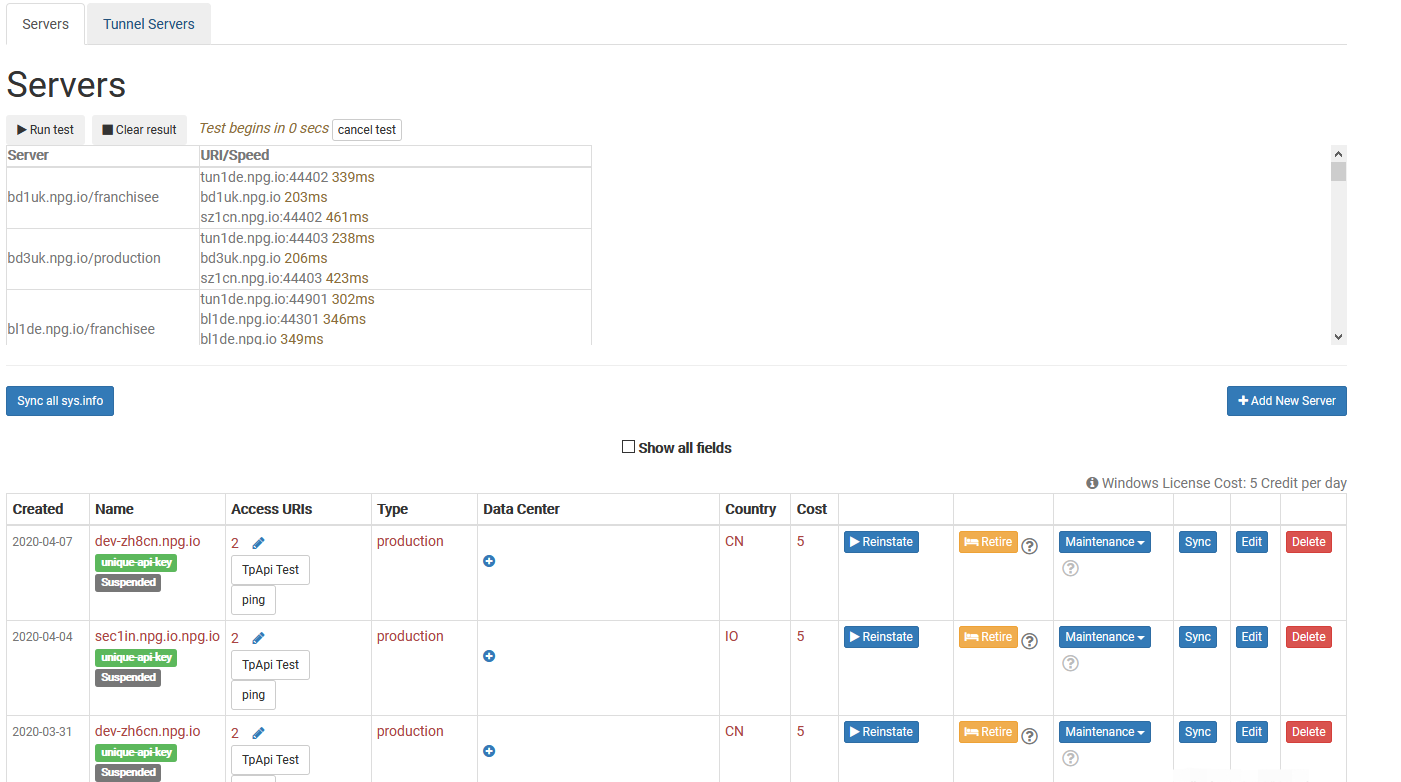
Sync all sys info
It reviews each server's CPU, memory, and other specs, and updates the database with the latest details. DaDesktop then uses this data to suggest servers to users, with those having greater resources getting priority.
After upgrading hardware, you can synchronize all servers or just a specific one.
Note that if you have over 1000 servers, this process may take a few minutes.
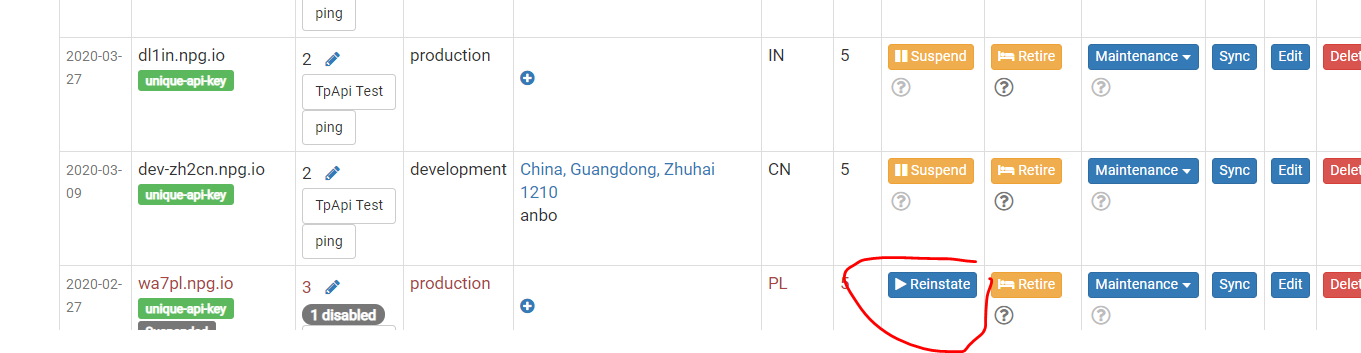
Change State (Suspend, Reinstate)
Suspend a server if it becomes inaccessible. This stops the DaDesktop GUI from checking the server's status and its desktops. You might use this if a server is unavailable because of a fault.
You may use it if server is not available due to malfunction.
Retiring Server
To discontinue use of a particular server, you can set it to retirement mode. This will stop new desktops from being created on that server. Existing desktops remain usable, and you can copy them to other servers.